Sharing links and playlists
Share any track or playlist with one link and stay in control of who can listen, download and for how long. Learn how share links, access settings and playlists work.
Related: Track tools
Tracks in your Library can be shared with collaborators, artists, team members or anyone you want to give access to. Each track has its own share link, with controls for downloads, expiry, passwords and custom URLs.
Share a track via link#
Every track in your Library has a unique share link that you can copy and send to anyone. Example link:
https://tstack.link/t/yourhandle/YourTrack
To share:
Open a track in your Library
Click Share
Click Copy link and share it anywhere you like
You can also open Share settings from the track's menu in your Library to see views and downloads and change who can access the link.
Track analytics#
The share settings show basic engagement for your link, including:
Views: how many times the link has been opened
Downloads: how many times the file has been downloaded
Last viewed: when the link was last opened
If you turn on Request profile, you'll also see the name and email of each person who downloaded the track.
Custom URL#
You can customise the share URL to make it easier to recognise and more professional.
Editable structure: https://tstack.link/t/yourhandle/customID
Use this to:
Create cleaner links
Brand your shared content
Make URLs easier to remember and reuse
Custom IDs need at least 3 characters and must start with a letter. If your profile is verified, some URL restrictions may apply for security reasons.
Access and security#
You can control how people interact with your shared track using these options:
Downloads
Downloads on: let people download the audio file
Downloads off: listening only, no downloading
Request profile: when downloads are on, collect a name and email before each download
Expiry
Choose No expiry, or let the link expire after 24 hours, 7 days or 30 days
Expiring links are useful for private previews, promos or limited listening windows
Password protection
Add a password to restrict access
Share the password only with approved listeners
Helps you keep control of early demos or sensitive material
Disable the link
Choose Disable public link to stop the link working for everyone straight away. You can re-enable it later.
Configure these options in the Access & Security section of each track's share settings.
Preview pages#
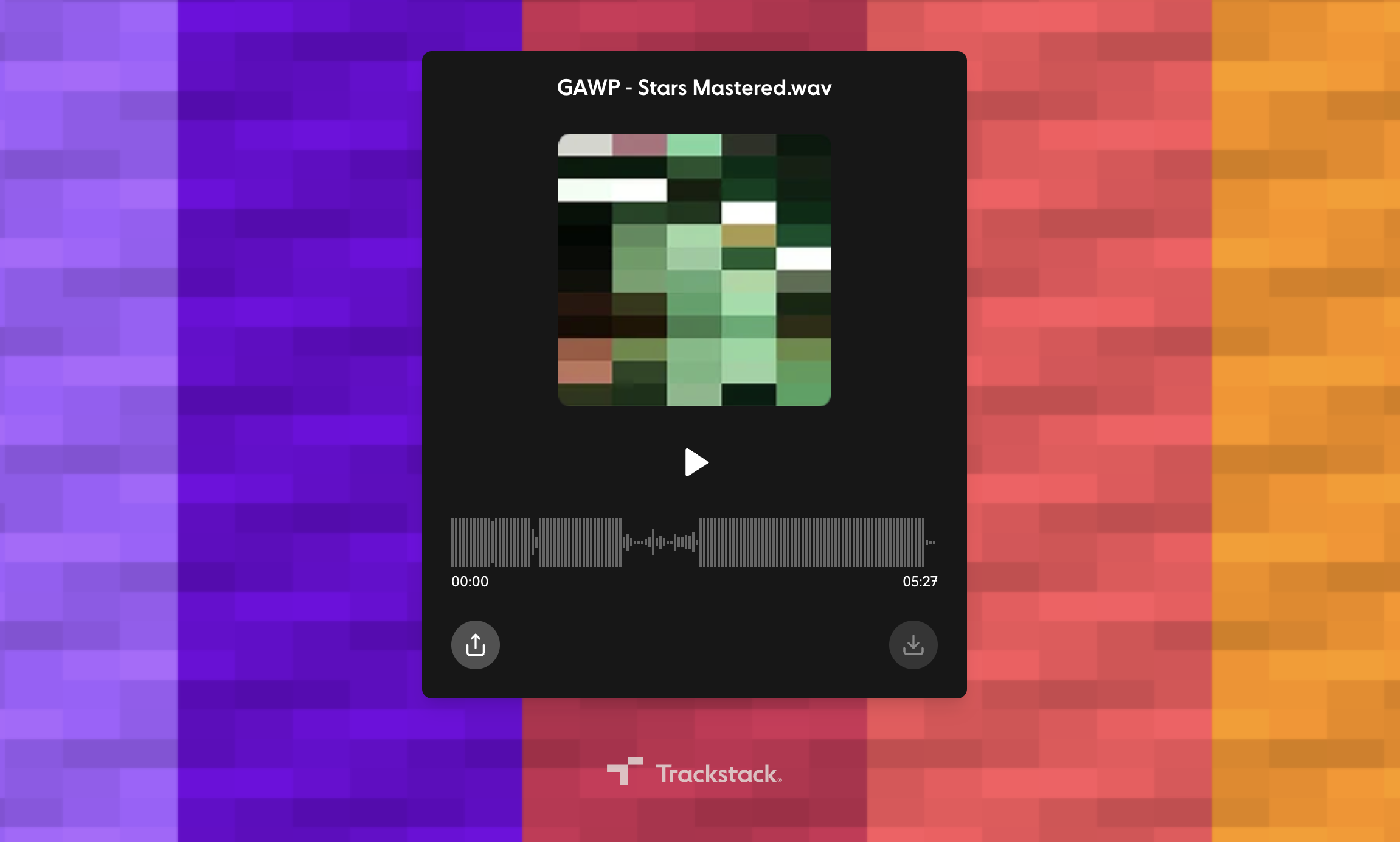
Your shared track page includes:
Track name
Artist info
Artwork (if added)
Listening player
Optional download button
Details such as BPM, key and file format
This gives recipients a clean, professional listening experience.
Playlists#
Playlists let you group multiple tracks together and share them as a single, professional link. They're ideal when you want recipients to hear tracks as a set, such as an EP, album, demo pack or label release preview.

What you can use playlists for
Playlists are perfect when you want to present music as a collection, such as:
A new EP or multi-track release
A pack of demos for A&R review
A curated selection for collaborators or promo partners
A sequence of tracks you want someone to hear together
Instead of sending multiple links, a playlist gives you one clean link.
Creating a playlist
To create a new playlist:
Go to Library and open the Playlists tab
Click New Playlist
Give it a name and add tracks from your Library
Drag tracks into your preferred order
Add artwork or notes (optional)
Your playlist now appears in the Playlists tab.
Sharing a playlist
Playlists can be shared just like individual tracks.
Each playlist includes:
A single shareable link (tstack.link/p/...)
One listening page showing all tracks
Artwork and playlist details
View and download analytics
Access & Security controls
Custom URL options
This makes the playlist easy to send, easy to manage and easy for recipients to navigate.
Access and security for playlists
Playlists support the same controls as individual track links:
Downloads on or off (including downloading every track at once)
Request profile, asked once for every track in the playlist
Password protection
Link expiry
This keeps unreleased material, professional demos and confidential previews secure.
Why use playlists?
Playlists give you:
A polished, professional listening experience for multi-track releases
A single link for efficient sharing
Better organisation for EPs, albums or demo packs
Consistency when presenting curated selections
Analytics to track interest and engagement
They're the best way to package multiple tracks into one link.
Summary#
Sharing links from your Library lets you:
Present tracks professionally
Control who can listen or download
Track engagement and usage
Use secure, customisable access settings
Collaborate more efficiently
Whether you're sending demos, drafts, reference tracks or final masters, Trackstack makes sharing simple and secure.